Blog / Video
Webcam Not Working in Chrome? 8 Fixes
Auralis Admin · Oct 26, 2026 · 8 min read
You click the camera button in Chrome and get a black box, a spinning circle, or a message saying your camera can’t be found. It’s even more annoying when the meeting started two minutes ago.
The camera itself is rarely broken. Most of the time Chrome is blocked from using it, something else is already using it, or the driver is acting up. Here are eight fixes, in the order that saves the most time.
Find out what kind of problem you have
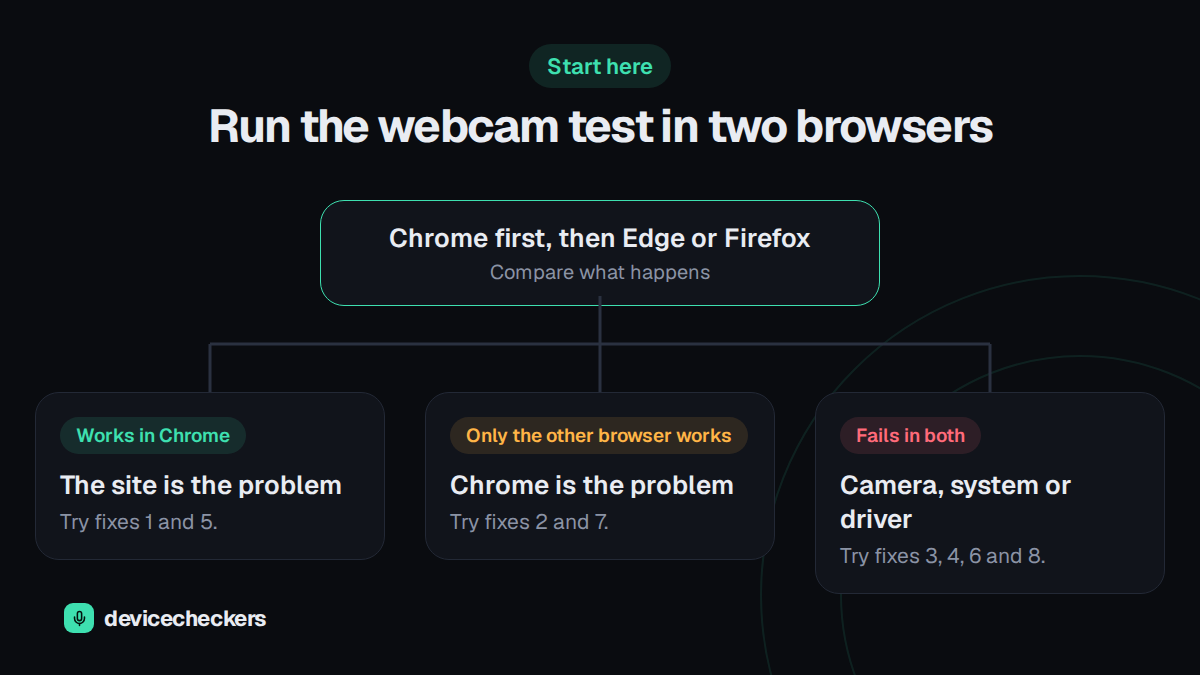
This takes about 30 seconds and saves a lot of guessing. Open our webcam test in Chrome and allow the camera when it asks. Then open the same page in another browser, like Edge or Firefox (or Safari on a Mac), and compare.
- If it works in Chrome, your camera is fine and the trouble is with the site you were using. Try fixes 1 and 5.
- If it only works in the other browser, Chrome is the problem. Try fixes 2 and 7.
- If it fails in both, look at the camera, your system or the driver. Try fixes 3, 4, 6 and 8.
What the error message means
Wording changes from site to site, but the error underneath is usually one of these three.
| What you see | What it usually means | Try |
|---|---|---|
| Permission denied | Chrome or your system blocked the camera | Fixes 1, 2 and 4 |
| Requested device not found | Chrome can’t see a camera at all | Fixes 5, 6 and 8 |
| Could not start video source | Another app has the camera, or the driver is stuck | Fixes 3 and 8 |
Fix 1: Allow the camera for the site
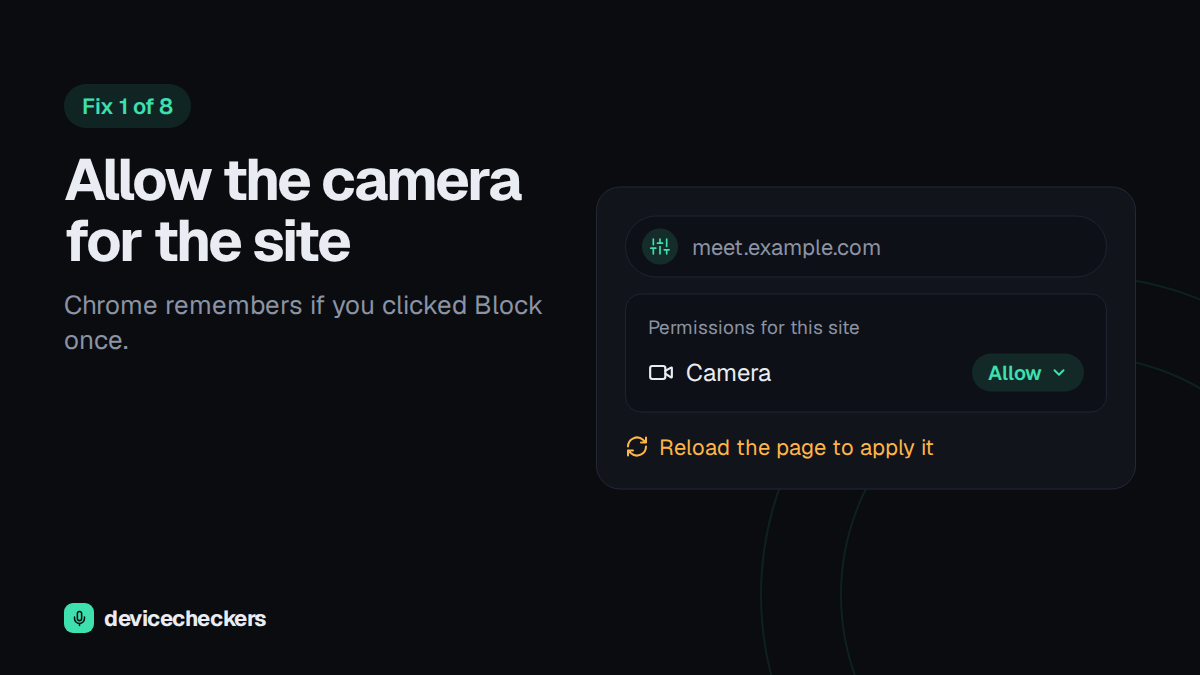
If you clicked Block on the permission pop-up once, even by accident, Chrome remembers that for the site. It won’t ask again until you change it.
- Click the small settings icon at the left end of the address bar. Older versions of Chrome show a padlock there instead.
- Find Camera in the list and set it to Allow.
- Reload the page.
You might also see a camera icon with a red cross at the right end of the address bar. That’s Chrome telling you it blocked the camera. Click it, choose the option to always allow the site, click Done, and reload.
Fix 2: Check Chrome’s own camera settings
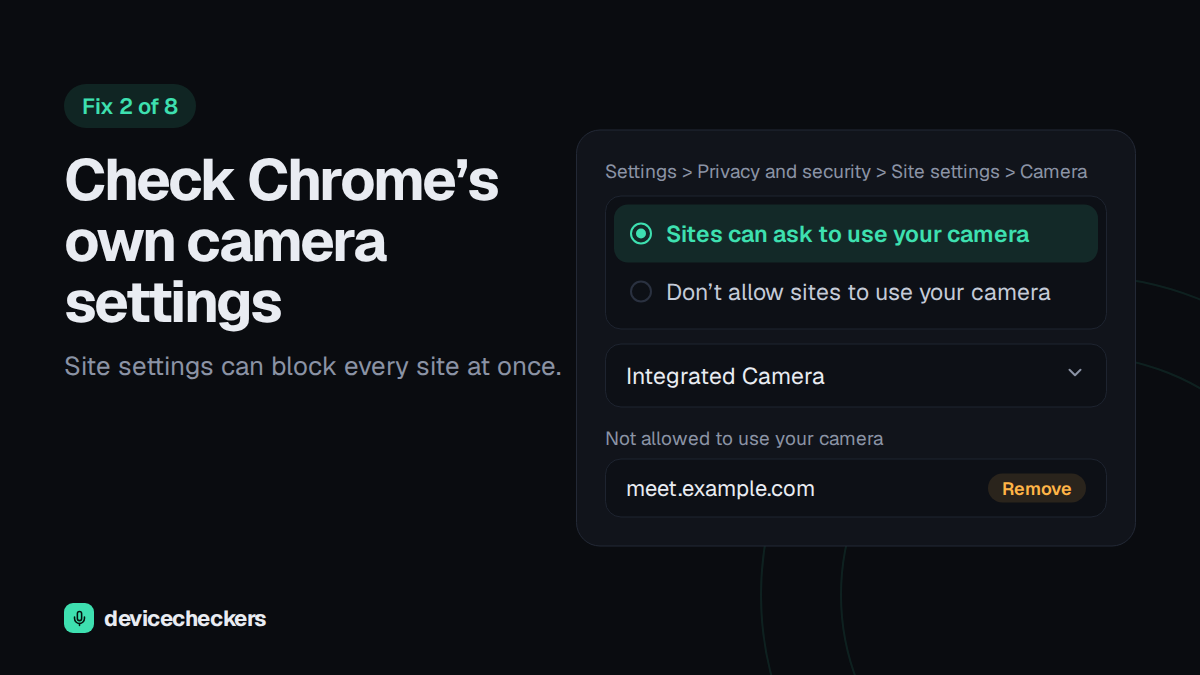
There’s also a global switch. Open Chrome’s menu, go to Settings, then Privacy and security, then Site settings, then Camera. You can also paste chrome://settings/content/camera into the address bar.
Three things to check there. “Sites can ask to use your camera” should be selected. The site you’re trying to use shouldn’t appear in the “Not allowed to use your camera” list, so remove it if it does. And the camera shown at the top should be the one you actually want.
If Chrome says some settings are managed by your organization, a work or school policy might be blocking the camera. In that case you’ll need to ask whoever looks after your IT.
Fix 3: Close other apps that are using the camera
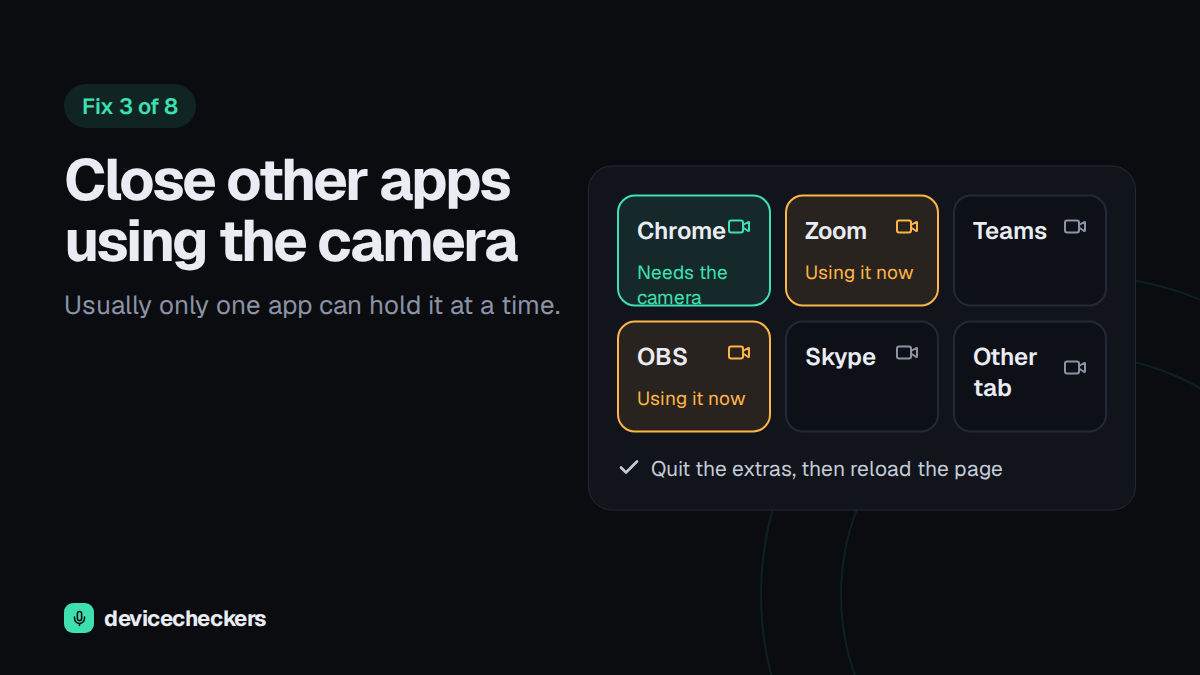
Usually only one app can hold the camera at a time. If Zoom, Teams, OBS, Skype, the Windows Camera app, or even a Google Meet tab in another browser window already has it, Chrome gets nothing, and you see “Could not start video source.”
Look for a hint that something is using it. Recent versions of Windows 11 show a small camera icon near the clock while an app is using the camera, and a Mac shows a green dot in the menu bar. Quit the apps you don’t need. If you can’t find the culprit, open Task Manager on Windows (Ctrl + Shift + Esc) or Force Quit on a Mac (Command + Option + Esc) and close anything camera-related from there. Then reload the page.
Fix 4: Allow Chrome in your system settings
Windows and macOS can both block a program from the camera, whatever Chrome’s settings say.
On Windows 10 and 11: open Settings, go to Privacy (Privacy & security on Windows 11), then Camera. Make sure Camera access is on, along with “Let apps access your camera” and “Let desktop apps access your camera.” Chrome counts as a desktop app, and that last switch is the one people miss.
On a Mac: open System Settings, then Privacy & Security, then Camera, and switch Google Chrome on. (On older macOS versions, it’s System Preferences, then Security & Privacy.) Quit Chrome completely and reopen it afterwards.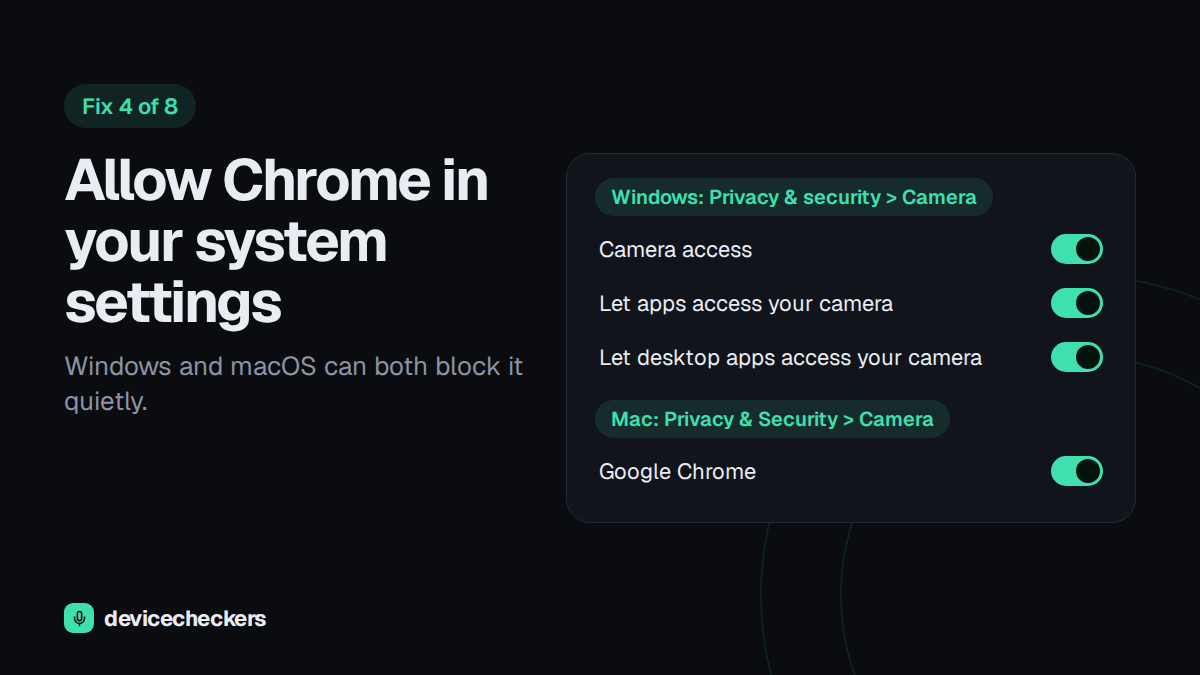
Fix 5: Pick the right camera
If you’ve ever installed OBS, a phone-as-webcam app or any other virtual camera, Chrome may be using that instead of your real camera. The picture comes up black because the virtual camera has nothing to show. The same thing happens if you have two webcams.
Open the camera dropdown on the site you’re using, or the one at the top of Chrome’s camera settings from fix 2, and choose your actual camera. Then reload the page.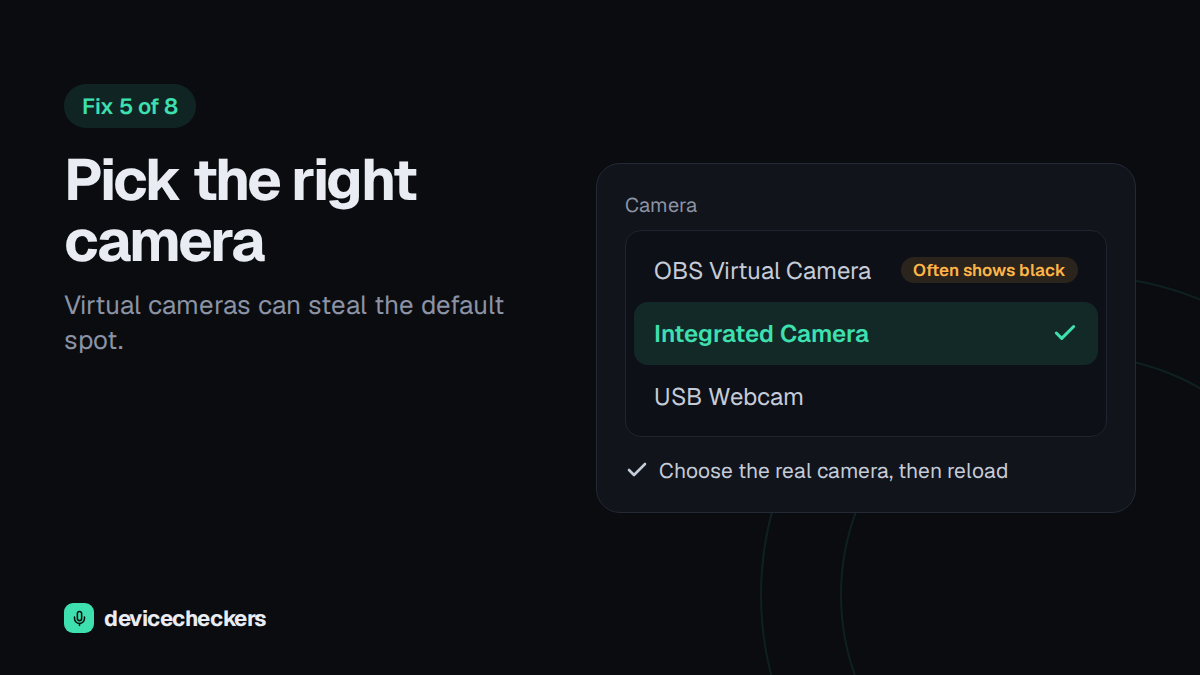
Fix 6: Check the physical stuff
It sounds silly, and it catches plenty of people. Many laptops have a sliding cover over the lens, and some have a privacy key on the top row of the keyboard that turns the camera off. A sticker or a bit of tape over the lens gives you the same black picture.
For an external webcam, plug it straight into the computer rather than through a hub, and try a different USB port or cable. If you have another computer nearby, plug it in there to find out whether the camera or the first computer is the problem.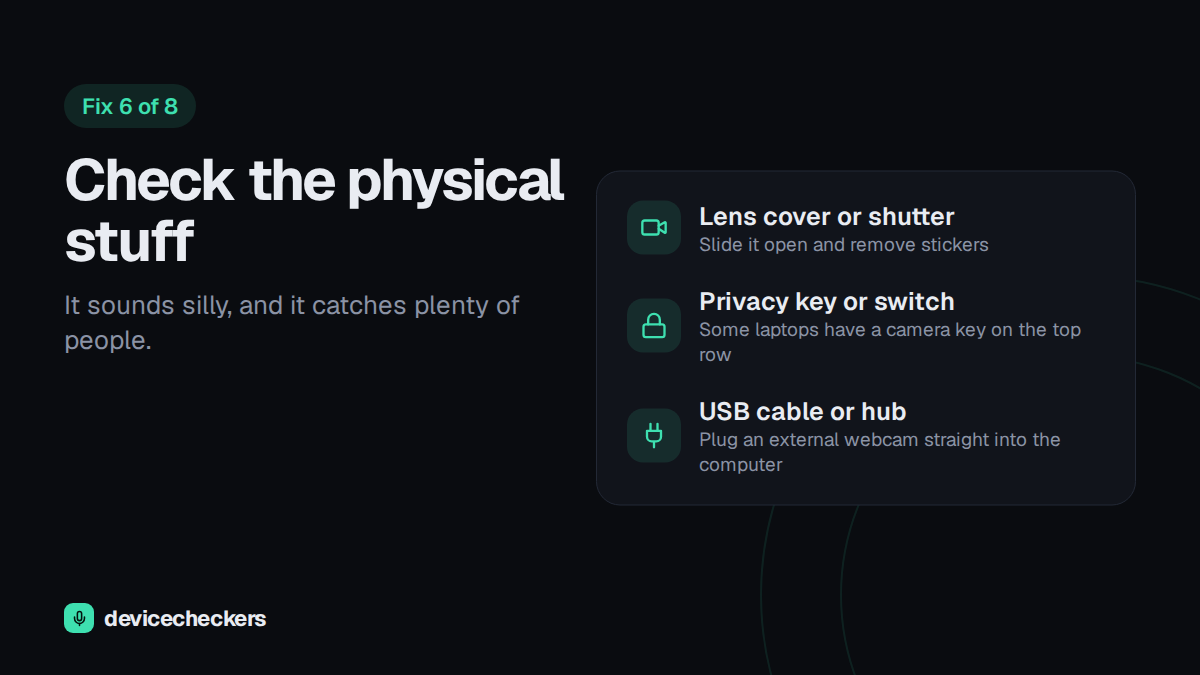
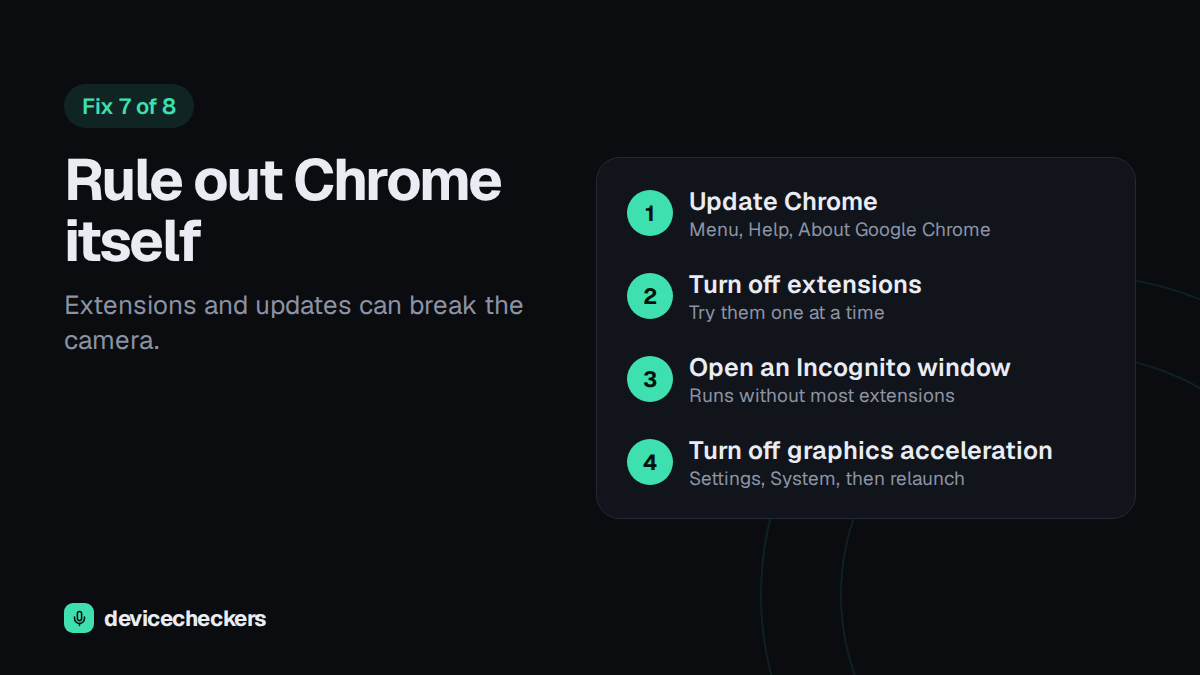
Fix 7: Rule out Chrome itself
If the camera worked in another browser, spend a few minutes on Chrome.
- Update it. Open the menu, go to Help, then About Google Chrome. It updates and asks you to relaunch.
- Turn off extensions. Type
chrome://extensionsin the address bar and switch them off, especially privacy tools, ad blockers and anything that adds camera filters. Turn them back on one at a time to find the one that’s causing trouble. - Try an Incognito window. It runs without most extensions, so it’s a quick way to check if one of them is the cause.
- Turn off graphics acceleration. If the picture is black but the camera light is on, go to Settings, then System, switch off “Use graphics acceleration when available,” and relaunch Chrome.
Fix 8: Update or reinstall the camera driver
If the camera fails in every browser, the driver is a likely suspect.
On Windows: right-click the Start button and open Device Manager. Expand Cameras (it’s sometimes under Imaging devices), right-click your camera, and choose Update driver, then Search automatically for drivers. If that doesn’t help, choose Uninstall device, restart the computer, and Windows will reinstall the driver. If the trouble began right after an update, open the camera’s Properties, go to the Driver tab, and try Roll Back Driver. And if the camera isn’t listed at all, use Action, then Scan for hardware changes.
On a Mac: there are no drivers to install by hand, so update macOS and restart. If you use an external webcam with its own software, update that as well.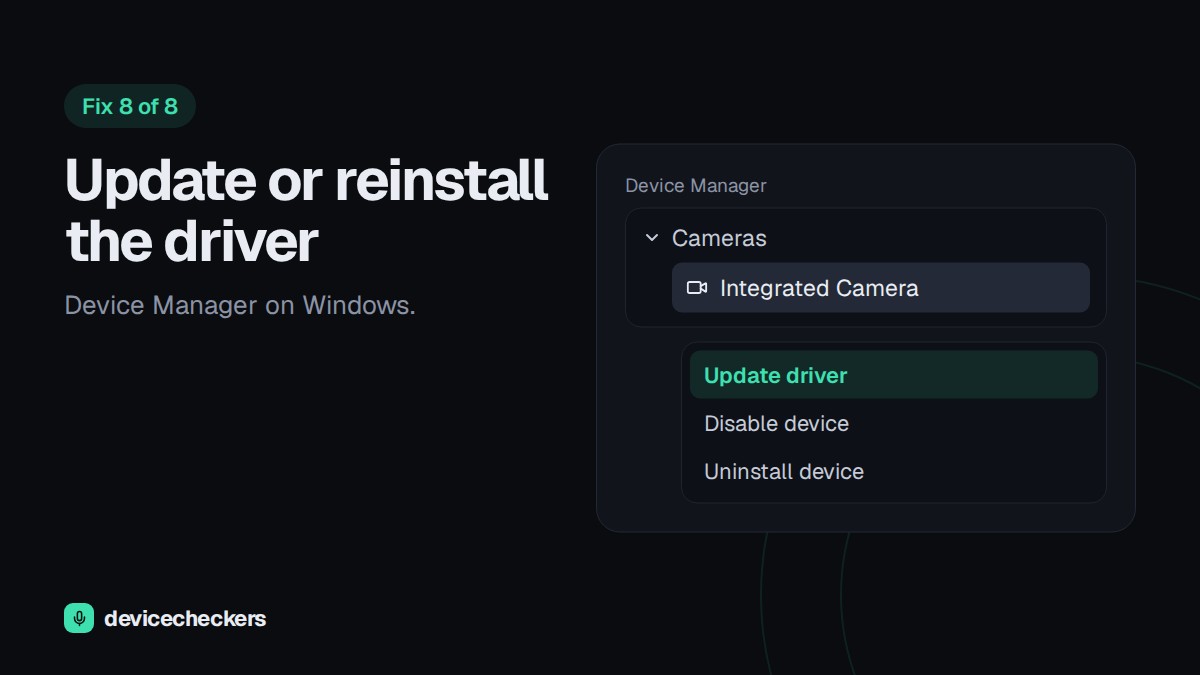
How to tell it’s fixed
Run the webcam test again. You should see a live picture and the resolution and frame rate. Then open our webcam mirror to check your framing and lighting before your call.
If it still doesn’t work, you’ve probably ruled out the common causes. At that point it’s worth trying the camera on another computer. If it fails there too, the camera itself is the problem.
Quick answers
Why does my webcam work in other apps but not in Chrome?
Chrome has its own permissions, its own default camera and its own extensions. A site can be blocked, the wrong camera can be selected, or an extension can interfere while other apps work fine. Fixes 1, 2, 5 and 7 cover those.
Why is my webcam screen black in Chrome?
Usually another app has the camera, Chrome picked a virtual camera, a cover is closed, or graphics acceleration is misbehaving. Fixes 3, 5, 6 and 7 are the ones to try.
Why does Chrome keep asking for camera permission?
Chrome asks again if you picked a one-time option (newer versions may offer “Allow this time”), if you browse in Incognito, or if your settings clear site data when you close the browser. Choose Allow for the site and check your cookie settings.
Having mic trouble too? Read how to test your microphone on Windows 11 and Mac or what to do when Zoom can’t hear you.
Test your mic in 10 seconds
Free, private and runs in your browser.
Discussion
Comments stay hidden until an admin approves them.
No approved comments yet.